Best USB Wi-Fi 7 and 6E Adapter in Canada: 5 Picks
Quick verdict
- Best overall: TP-Link Archer TBE400UH. Tri-band Wi-Fi 7, a USB 3.0 cradle and high-gain antennas to get through a floor or a drywall wall.
- Best throughput and latency: MSI BE6500. Tri-band Wi-Fi 7 with MLO, for online gaming and transfers to a NAS.
- Most compact: ASUS USB-BE92 Nano. It disappears into a laptop, but its USB 2.0 interface limits real-world speed.
- Best proven Wi-Fi 6E: NETGEAR Nighthawk A8000. 6 GHz without paying for Wi-Fi 7.
- Most affordable Wi-Fi 6E: TP-Link Archer TXE70UH. Tri-band with a USB 3.0 cradle, simple to plug into a desktop PC.
Whatever the model, you need Windows 11 to get the 6 GHz band. If your PC runs Windows 10, a Wi-Fi 7 adapter has no advantage over a dual-band model.
Why a USB Wi-Fi adapter in a Canadian home
In a multi-storey house or one with a finished basement, the router (Bell Giga Hub, Rogers Ignite gateway, Vidéotron Helix or a mesh system like TP-Link Deco) is rarely next to the PC. Running an Ethernet cable through floors, drywall and concrete costs time or money. A well-chosen USB adapter solves the problem in ten minutes, without drilling.
They also modernize a desktop PC whose built-in Wi-Fi is old or missing. Compatibility with your router depends on the model: some Giga Hubs and the Deco XE75 are Wi-Fi 6E, but check your device’s spec sheet before buying for 6 GHz.
One last point: if your computer can be plugged in with Ethernet, do it. The cable is more stable and cheaper than an adapter. This comparison is for people who can’t.
Quick comparison table
| Model | Standard | Theoretical speed 2.4 / 5 / 6 GHz | Form | Interface | Windows 11 / Windows 10 / Linux |
|---|---|---|---|---|---|
| TP-Link Archer TBE400UH | Wi-Fi 7, tri-band | Up to 688 / 2,882 / 2,882 Mbps | Cradle with 2 antennas | USB 3.0 | Yes / Yes (no 6 GHz) / Not guaranteed |
| MSI BE6500 | Wi-Fi 7, tri-band | Up to 688 / 2,880 / 2,880 Mbps | Dongle with 2 antennas | USB 3.2 Gen 1 | Yes / Limited features / Not guaranteed |
| ASUS USB-BE92 Nano | Wi-Fi 7, tri-band | According to ASUS, BE6500 class | Nano | USB 2.0 | Yes / Yes (64-bit, no 6 GHz) / Not guaranteed |
| NETGEAR Nighthawk A8000 | Wi-Fi 6E, tri-band | Up to 574 / 1,200 / 1,200 Mbps | Cradle with folding antenna | USB 3.0 | Yes / Yes (no 6 GHz) / Not guaranteed |
| TP-Link Archer TXE70UH | Wi-Fi 6E, tri-band | Up to 574 / 2,402 / 2,402 Mbps | Cradle with antennas | USB 3.0 | Yes / Yes (no 6 GHz) / Driver available, to be checked |
Theoretical speeds are the manufacturers’ claims: in practice, expect half or less. Approximate prices are given in each listing; check today’s price on Amazon.ca.
The criteria that really matter
The 6 GHz band. The 2.4 and 5 GHz bands are crowded in dense neighbourhoods and apartment buildings: the neighbours’ routers compete with each other. The 6 GHz band, reserved for Wi-Fi 6E and Wi-Fi 7 devices, is nearly empty. The result: less interference, steadier latency and more consistent speed. The honest trade-off: 6 GHz goes through walls less well than 5 GHz. It shines in the same room or on the next floor, but not at the far end of the basement. The adapters then fall back to 5 GHz automatically.
Wi-Fi 7 or Wi-Fi 6E. Wi-Fi 7 adds MLO (simultaneous connection across several bands), wider channels and better latency. It only brings a gain if your router is also Wi-Fi 7. If yours is Wi-Fi 6E, a Wi-Fi 6E adapter gives you the 6 GHz band for less.
USB 3.0 cradle or Nano dongle. A Nano dongle plugged into the back of a PC under a desk is hidden behind the case, the metal and the wall. A cradle connected by a USB cable lets you place the adapter up high, with adjustable antennas. For a desktop PC, it’s the best-value choice.
The USB interface. A USB 3.0 (or better) interface is needed to go beyond a few hundred megabits per second. USB 2.0 tops out well below the speeds printed on the box.
Windows 11 is mandatory for 6 GHz. Windows 10 doesn’t see the 6 GHz band. For full Wi-Fi 7, aim for Windows 11 24H2 or newer.
1. TP-Link Archer TBE400UH: best overall
A tri-band Wi-Fi 7 adapter that ships with a USB 3.0 cradle and a cable of about 1.2 m. The two high-gain antennas swivel toward the router, which helps pick up the signal through a floor or a wall.
TP-Link Archer TBE400UH
Pros
- Tri-band Wi-Fi 7: 2.4, 5 and 6 GHz
- USB 3.0 cradle and 1.2 m cable to place the adapter away from the case
- Adjustable high-gain antennas, useful through walls and floors
- Also works with a Wi-Fi 6E or Wi-Fi 6 router
Cons
- Bulkier than a Nano dongle: you have to find it a spot on the desk
- Without Windows 11, 6 GHz and full Wi-Fi 7 stay unavailable
- Linux support isn't guaranteed: check the driver before you buy
Approximate budget: around $90 – $140.
2. MSI BE6500 WiFi 7: the throughput and latency reference
Tri-band Wi-Fi 7 with MLO, on a USB 3.2 Gen 1 interface and two high-gain antennas. It’s the one to aim for in online gaming, transfers to a NAS and demanding workstations, as long as you have a Wi-Fi 7 router.
MSI BE6500 WiFi 7 USB Adapter
Pros
- Wi-Fi 7 with MLO and the 6 GHz band, up to about 2,880 Mbps on each of the 5 and 6 GHz bands
- USB 3.2 Gen 1 interface so it doesn't throttle the speed
- Low latency, well suited to online gaming and fast transfers to a NAS
Cons
- MLO and wide channels also need a Wi-Fi 7 router: otherwise the advantage disappears
- Limited features on Windows 10; Windows 11 24H2 recommended
- The 320 MHz channel may be unavailable depending on local regulations
Approximate budget: around $100 – $150.
3. ASUS USB-BE92 Nano: the compactness champion
A tri-band Wi-Fi 7 dongle the size of a big fingernail: it barely sticks out of the port. Ideal for a laptop or a visible mini PC, plugged in at the front or the side. Mini PCs for Home Assistant are still better served by a cable, though.
ASUS USB-BE92 Nano
Pros
- Tiny Nano format, takes up no room
- Tri-band Wi-Fi 7 with the 6 GHz band
- Plug and forget, no software to install
Cons
- USB 2.0 interface according to ASUS's spec sheet: real-world speed is far below the numbers on the box
- Internal antennas, so less effective through a floor or a basement
- No cradle: avoid it behind a PC under a desk
- No Bluetooth
Approximate budget: around $60 – $100.
4. NETGEAR Nighthawk A8000: proven Wi-Fi 6E
Tri-band Wi-Fi 6E on USB 3.0, with a magnetic cradle and a folding antenna. It’s the right choice if your router or mesh system is Wi-Fi 6E (a Giga Hub or Deco XE75, for example) and you want 6 GHz without paying for Wi-Fi 7.
NETGEAR Nighthawk A8000 (Wi-Fi 6E)
Pros
- 6 GHz band at a lower cost than Wi-Fi 7
- USB 3.0 with a cradle and folding antenna
- Well-known brand, available on Amazon.ca
Cons
- More modest theoretical speed than the Wi-Fi 7 models and the TXE70UH (about 1,200 Mbps on each of the 5 and 6 GHz bands)
- A single antenna, less gain than a TBE400UH
- Windows 11 mandatory for 6 GHz; no official Linux support
Approximate budget: around $75 – $110.
5. TP-Link Archer TXE70UH: the affordable Wi-Fi 6E alternative
A plug-and-play tri-band Wi-Fi 6E with a USB 3.0 cradle and high-gain antennas. To modernize a Windows desktop PC on a small budget, it’s a good entry point.
TP-Link Archer TXE70UH (Wi-Fi 6E)
Pros
- Tri-band Wi-Fi 6E with up to 2,402 Mbps on each of the 5 and 6 GHz bands
- USB 3.0 cradle with high-gain antennas
- Price often lower than the Wi-Fi 7 models
- A Linux driver exists from TP-Link, depending on the hardware (to be checked)
Cons
- No Wi-Fi 7: no MLO or 320 MHz channels
- Windows 11 mandatory for 6 GHz
- On Linux, driver installation is manual and often means turning off Secure Boot
Approximate budget: around $50 – $85.
How to place your USB adapter to double your real-world speed
A $100 adapter in the wrong place does worse than a $50 model that’s well set up.
- Avoid ports on the back of the PC, pressed against the wall. The case, the wall and the metal block the signal. Use a front port, or the cradle sitting on the desk in view.
- Keep the adapter away from poorly shielded USB 3.0 ports. They emit interference in the 2.4 GHz band, which also affects your Zigbee devices. Plug the adapter into its cradle cable or an extension, a few tens of centimetres from the machine and from external drives.
- Aim the antennas. An antenna radiates sideways, not along the axis of its tip. To get through a floor, tilt one antenna vertical and the other horizontal. For the same floor, set them upright.
- Move closer to the router or mesh node. The biggest gain comes from distance. A Deco node on the same floor as the PC does better than the fanciest adapter: see our guide on choosing mesh Wi-Fi for a two-storey home.
- Choose a clean channel. In a dense neighbourhood, let the router pick automatically, and favour 6 GHz for nearby devices.
Which adapter should you choose?
- Wi-Fi 7 router and a desktop PC: TP-Link Archer TBE400UH.
- Gamer or local NAS, Wi-Fi 7 router: MSI BE6500.
- Laptop, frequent travel: ASUS USB-BE92 Nano, accepting its limits.
- Wi-Fi 6E router (Giga Hub, Deco XE75): NETGEAR Nighthawk A8000 or TP-Link Archer TXE70UH.
- Smart home server: don’t use a Wi-Fi dongle. Plug in an Ethernet cable, as in our Home Assistant installation guide, and keep Wi-Fi for your other devices. For remote access, see the VPN guide with no cloud.
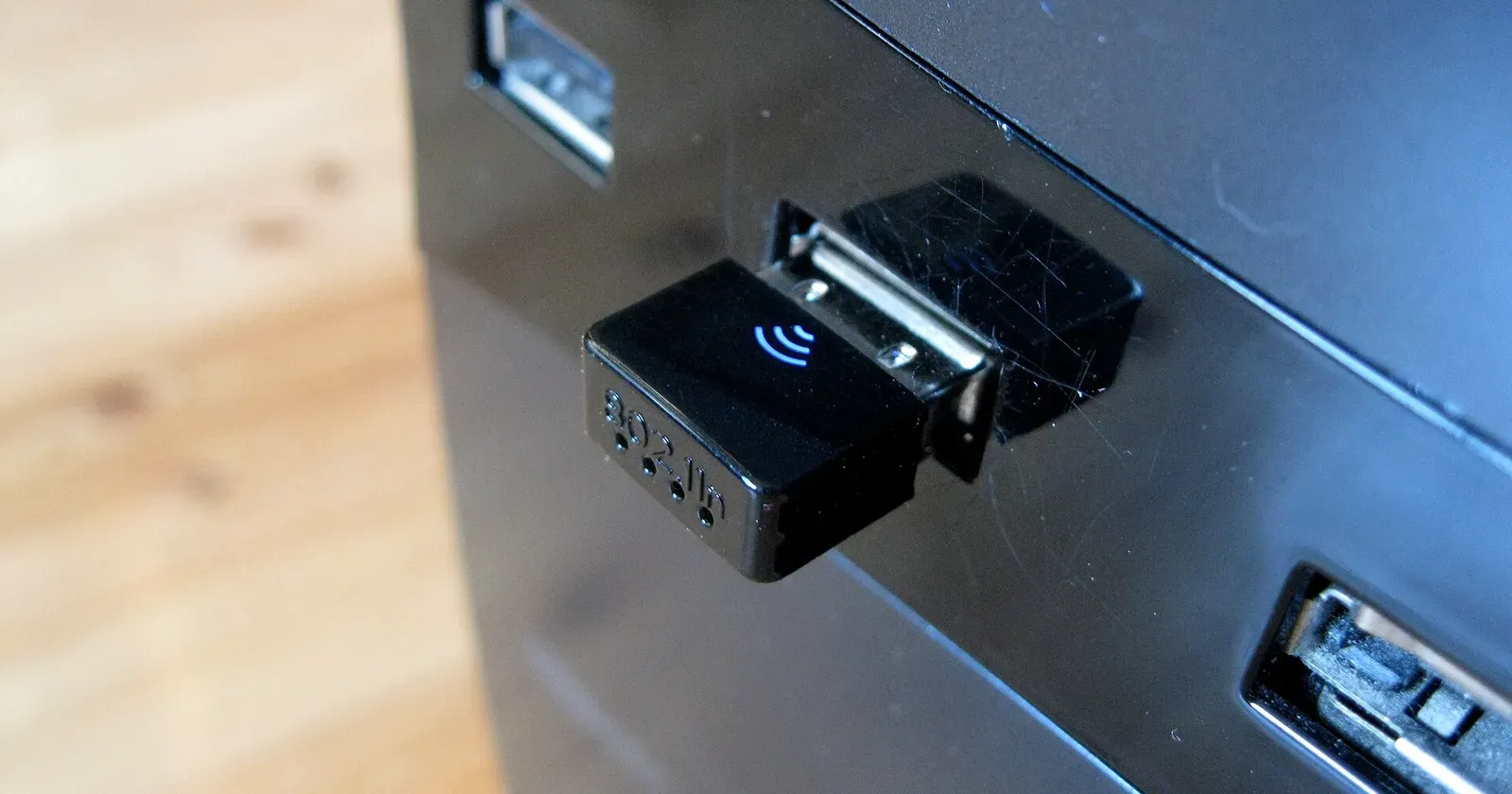
Photo: “USB Dongle WiFi stick on computer”, Santeri Viinamäki, Wikimedia Commons, CC BY-SA 4.0 (cropped and converted).
Frequently asked questions (FAQ)
Do I absolutely need a Wi-Fi 7 router to use the TP-Link Archer TBE400UH or the MSI BE6500?
No. These adapters connect to any Wi-Fi 6E, Wi-Fi 6 or even older router. With a Wi-Fi 6E router, you get the 6 GHz band, but without Wi-Fi 7-specific features like MLO. To get the most out of Wi-Fi 7, the router or mesh system also has to be Wi-Fi 7, and the computer has to run Windows 11.
Why doesn't the 6 GHz band show up on Windows 10?
Windows 10 doesn't support the 6 GHz band: it only shows 2.4 GHz and 5 GHz, even with a tri-band adapter and a compatible router. You need Windows 11 for 6 GHz, and ideally version 24H2 or newer to take advantage of Wi-Fi 7. On Windows 10, the adapter still works, but as a dual-band model.
Nano format or a cradle with antennas for the basement?
The cradle with antennas is clearly preferable if the PC is in the basement, under a desk or far from the router. It lets you place the adapter up high, in view, and aim the antennas. A Nano dongle plugged into the back of the case ends up in a corner, pressed against the wall or metal, which weakens the signal. The Nano mostly suits a laptop or a workstation near the router.
Do these adapters work with Linux and Home Assistant?
On Linux, it depends on the chip and the driver, and Wi-Fi 7 is still poorly supported: check the driver before you buy. For a Home Assistant server, plug in an Ethernet cable instead: a USB Wi-Fi dongle isn't a reliable choice for a smart home server that has to stay available around the clock. These dongles are designed for a Windows PC.