Wall-Mounted Home Assistant Dashboard With a Tablet
Quick verdict
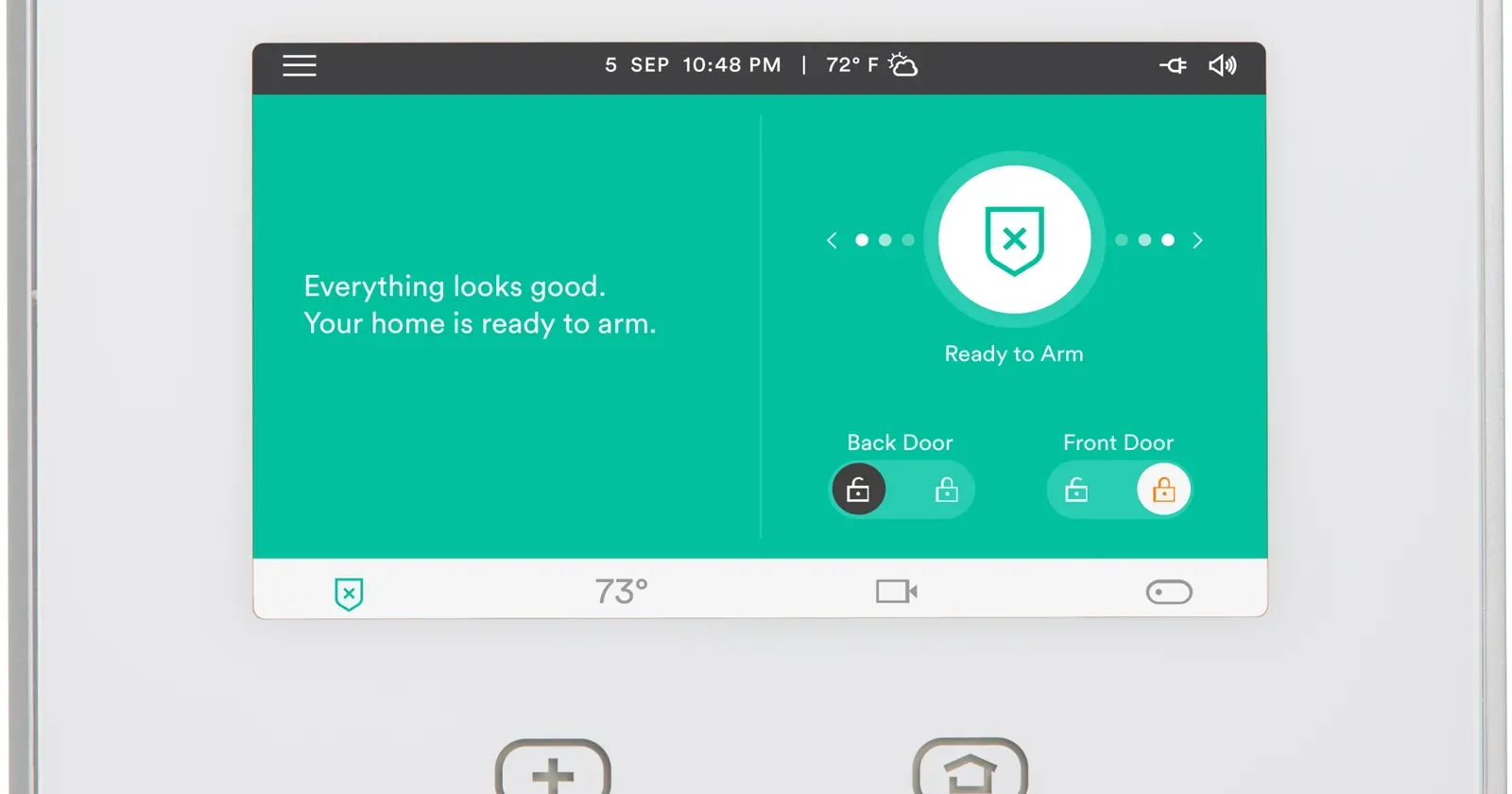
A 10 to 11 inch tablet mounted near the entrance or the kitchen, Fully Kiosk Browser full screen and a Home Assistant dashboard designed to be read from two metres away: it is the best investment in a smart home once the server is in place. The whole family sees the temperature, open doors and Hydro-Québec alerts without pulling out a phone.
- Tight budget: Amazon Fire HD 10, often on sale on Amazon.ca. Slightly longer setup (APK install).
- Simplest and most durable: Samsung Galaxy Tab A9+ or Lenovo Tab M11, with Google Play and a built-in charge limit.
- Built into the wall like a switch: SONOFF NSPanel Pro 120, wired into a 120 V electrical box by an electrician.
Prerequisite: a Home Assistant server that is already running. If not, start with our guide to installing Home Assistant on a mini PC.
Comparison table: which screen goes on the wall?
| Option | Screen | App installation | Battery protection | Who is it for? |
|---|---|---|---|---|
| Amazon Fire HD 10 | 10.1 in, 1920 × 1200 | APK (no Google Play) | No: a smart plug is a must | Small budget, patient tinkerer |
| Samsung Galaxy Tab A9+ | 11 in, 90 Hz | Google Play | Yes, 80% limit | The no-hassle choice |
| Lenovo Tab M11 | 11 in, 90 Hz | Google Play | Yes, depending on software version | Alternative to the Samsung |
| SONOFF NSPanel Pro 120 | Small recessed touchscreen | Built-in app | No battery | Clean look, electrical installation |
Hardware prerequisites
Budget tablet: Amazon Fire HD 10
Amazon Fire HD 10 (13th generation)
Pros
- 10.1 in 1920 × 1200 screen, readable from a distance
- Often on sale on Amazon.ca, especially on Black Friday
- Recent versions have more RAM, which helps with busy dashboards
- Decent speakers for Home Assistant voice announcements
Cons
- No Google Play: Fully Kiosk installs by APK and the Appstore Home Assistant app often lags behind
- No 80% charge limit in Fire OS
- The maker of Fully Kiosk itself discourages Fire OS for permanent use
- Lock-screen ads on the base model
Approximate budget: around $100 – $200 depending on memory and sales. Check the current price with the button.
Recommended tablet: Samsung Galaxy Tab A9+
Samsung Galaxy Tab A9+ (Wi-Fi, 11 in)
Pros
- Google Play: Fully Kiosk and an up-to-date Home Assistant app in two minutes
- "Protect battery" option that stops charging at 80%
- 11 in 90 Hz screen, smooth for animated cards
- Android updates handled by Samsung
Cons
- More expensive than a Fire HD 10
- Average front camera for motion detection in a dark room
- The successor (Tab A11+) is gradually replacing the A9+ in stores: check the listing
Approximate budget: around $250 – $350. Check the current price with the button.
Alternative: Lenovo Tab M11
Lenovo Tab M11
Pros
- 11 in 90 Hz screen and Google Play
- Splash-resistant body (IP52), handy near the kitchen
- Often cheaper than the Samsung on sale
Cons
- More modest processor: avoid dashboards with several camera streams
- Fewer years of Android updates than recent models
Approximate budget: around $180 – $280.
Recessed panel: SONOFF NSPanel Pro 120
SONOFF NSPanel Pro 120 (North American electrical box)
Pros
- Format designed for North American electrical boxes, powered at 120 V
- No battery to watch
- Built-in Zigbee gateway and a proximity sensor that wakes the screen
Cons
- Smaller screen than a tablet: a simplified dashboard is a must
- Wired to 120 V: call a licensed electrician
- Home Assistant display is less flexible than Fully Kiosk on a real tablet
Approximate budget: around $150 – $220, plus the electrician.
The plug that protects the battery
Essential with the Fire HD 10, useful with every tablet: a smart plug that cuts the charger based on the battery level. A Zigbee plug stays controllable even if the internet goes down.
THIRDREALITY Smart Plug Gen3 (Zigbee)
Pros
- Works locally with Home Assistant (ZHA or Zigbee2MQTT)
- Measures consumption: you see when the tablet is charging
- Small format, designed for North American 120 V outlets
Cons
- Needs a Zigbee dongle or coordinator
- The format can cover the second outlet of a duplex receptacle depending on orientation
Approximate budget: around $20 – $40 each or in a pack.
Also plan for a wall mount for a 10 to 11 inch tablet (magnetic or clamp), and a 90° angled USB-C cable long enough to reach the outlet without strain.
Step 1: prepare Home Assistant
- Create a dedicated user. In Settings > People > Users, add “Wall tablet”, without administrator rights. If someone tampers with the tablet, they cannot change your settings.
- Create a separate dashboard. Settings > Dashboards > Add dashboard, name it “Wall” and choose the Sections view, which suits a tablet’s landscape screen well.
- Note your server’s fixed IP address (for example
http://192.168.1.50:8123). Reserve it in your router:homeassistant.localworks poorly on some tablets.
Step 2: install Fully Kiosk Browser on the tablet
Samsung or Lenovo: install Fully Kiosk Browser & App Lockdown from Google Play.
Fire HD 10:
- In Settings > Security & Privacy, allow installing apps from unknown sources for the Silk browser.
- Open Silk, download the Fully Kiosk Browser APK file only from the official site fully-kiosk.com, then install it.
- Turn off sleep timers and lock-screen offers as far as Fire OS allows.
In every case, update the tablet before you start, then turn off automatic app updates that could restart the screen at the wrong time.
Step 3: configure Fully Kiosk
Open Fully Kiosk, then the settings menu (swipe from the left edge):
- Web Content Settings > Start URL: the address of your dashboard, for example
http://192.168.1.50:8123/dashboard-wall/0. Log in with the “Wall tablet” user and tick “Stay logged in”. - Device Management > Keep Screen On: enabled.
- Motion Detection: enabled, with “Turn Screen On on Motion”. The front camera wakes the screen when someone walks past.
- Screensaver or Screen Off Timer: 2 to 5 minutes without motion.
- Remote Administration: enabled, with a strong password. This is what lets Home Assistant control the tablet.
- Kiosk Mode: enabled last, with a PIN code, to keep kids from leaving the dashboard.
The Fully PLUS license (one-time purchase per device, no subscription) is required for remote administration and motion detection. Test first in the free version, then buy the license once you are happy.
Step 4: add the Fully Kiosk integration in Home Assistant
- Settings > Devices & services > Add integration > Fully Kiosk Browser.
- Enter the tablet’s IP address and the remote administration password.
- You get a set of entities: screen switch, brightness, battery level, charging state, and more.
Example automation: turn the screen off at 11 p.m. and back on at 6:30 a.m. on weekdays, so the hallway is not lit all night.
Step 5: design a dashboard that reads from a distance
A wall dashboard is not the phone app. The rules that work:
- One page, no scrolling. If you have to scroll, nobody will.
- Information first, buttons second. At the top: weather, indoor and outdoor temperature, open doors and windows. At the bottom: scenes (“Leaving”, “Night”, “Movie”).
- Large tile cards and big text. Read your dashboard from two metres away before you approve it.
- Energy use at a glance. If you already measure your consumption with a local Hydro-Québec energy monitor, show the instantaneous power and a clearly visible alert during Flex D peak events. The whole family then knows to delay the dryer.
- Hide the header and sidebar with the HACS kiosk-mode module, or add
?kioskto the address if you already use it. The result looks like a real panel.
Step 6: protect the battery with a smart plug
A tablet kept plugged in at 100% often ends up swelling. On Samsung, first turn on Settings > Battery > Protect battery. On the Fire HD 10, or as a complement, let Home Assistant manage the charger plug. Replace the entity names with yours:
alias: Wall tablet - 20 to 80% charge cycle
mode: single
triggers:
  - trigger: numeric_state
    entity_id: sensor.wall_tablet_battery
    below: 20
    id: charge
  - trigger: numeric_state
    entity_id: sensor.wall_tablet_battery
    above: 80
    id: stop
actions:
  - choose:
      - conditions:
          - condition: trigger
            id: charge
        sequence:
          - action: switch.turn_on
            target:
              entity_id: switch.tablet_plug
      - conditions:
          - condition: trigger
            id: stop
        sequence:
          - action: switch.turn_off
            target:
              entity_id: switch.tablet_plug
Add a second automation that turns the plug back on if the battery sensor becomes “unavailable” for more than 30 minutes: a dead tablet can no longer report anything.
Step 7: mount it on the wall
- Height: about 140 to 150 cm from the floor, with the centre of the screen at an adult’s eye level.
- Location: near the entrance or the kitchen, where you pass every day. Avoid the exterior wall of an older house: in the middle of a Canadian winter it can be cold to the touch, and a battery does not like that.
- Power: a raceway painted the wall colour does the job. Never run a flexible cord inside the wall; for an invisible result, ask a licensed electrician to add an outlet behind the tablet or use a CSA- or cUL-certified recessed pass-through kit.
- Wi-Fi: check the signal at the exact spot. A screen that loses its connection shows an error page instead of your dashboard.
Pitfalls to avoid
- Exposing Home Assistant to the internet for the tablet. It is on your local network and needs no outside access. To check on the house from outside, follow our guide to remote access through a VPN, no cloud instead.
- Logging in with the administrator account. Anyone could delete an automation with one finger.
- Showing several camera streams continuously. Entry-level tablets heat up and slow down. Show a still image refreshed periodically, and video only on tap.
- Forgetting brightness. Set a low brightness in the evening, by automation, to avoid glare.
- Leaving automatic updates on. A Fire OS or Android update can reset some Fully Kiosk settings. Run them yourself, at a time when you can check.
Photo: “Vivint Skycontrol Panel”, Vivint, Wikimedia Commons, CC BY-SA 4.0 (cropped and converted).
Frequently asked questions (FAQ)
Is an Amazon Fire HD 10 tablet good enough for a Home Assistant dashboard?
Yes, on a tight budget. It displays a dashboard very well and is often on sale on Amazon.ca. Its limits: no Google Play, so Fully Kiosk Browser is installed from the APK file on the official site, the Home Assistant app in the Amazon Appstore often lags a few versions behind, and Fire OS has no 80% charge limit. A Samsung or Lenovo tablet with Google Play is simpler to set up and protects its battery better.
Do I have to pay for Fully Kiosk Browser to use it with Home Assistant?
The basic app is free and is enough to show the dashboard full screen. The Fully PLUS license, a one-time purchase per device with no subscription, unlocks the remote administration that Home Assistant's Fully Kiosk Browser integration needs: turning the screen on and off, setting brightness and reading the battery level from your automations.
Can I leave a tablet plugged in 24 hours a day on a wall?
It is possible, but a lithium battery kept at 100% constantly wears out fast and can swell after a year or two. Turn on the 80% battery protection if the tablet offers it, as Samsung does. Otherwise, plug the charger into a smart plug and let Home Assistant cut it at 80% and turn it back on at 20%. Check the tablet every few months: a screen lifting away from the body is a sign of swelling.
Can I run the charger cable inside the wall?
Not a simple power cord: the electrical code does not allow a flexible cord to be run inside a wall. Use a surface raceway, an outlet added behind the tablet by a licensed electrician, or a CSA- or cUL-certified recessed cable pass-through kit designed for this use.