Set Up Alexa and Your Amazon Devices: Step-by-Step Guide
Quick verdict
For a first Alexa smart home, you need a new-generation Echo Dot (or an Echo Dot Max) and one or two smart plugs. Plan on about an hour, no subscription and no technical skills.
If you want to control the house by touch, add an Echo Hub. If you want the living-room TV to act as a control centre, add a Fire TV Stick 4K Max.
An honest caveat: Alexa runs through Amazon’s cloud, and the microphones listen for the wake word. If privacy is your priority, first read our comparison of Alexa, Google Home, Apple Home and Home Assistant.
The Amazon ecosystem hardware
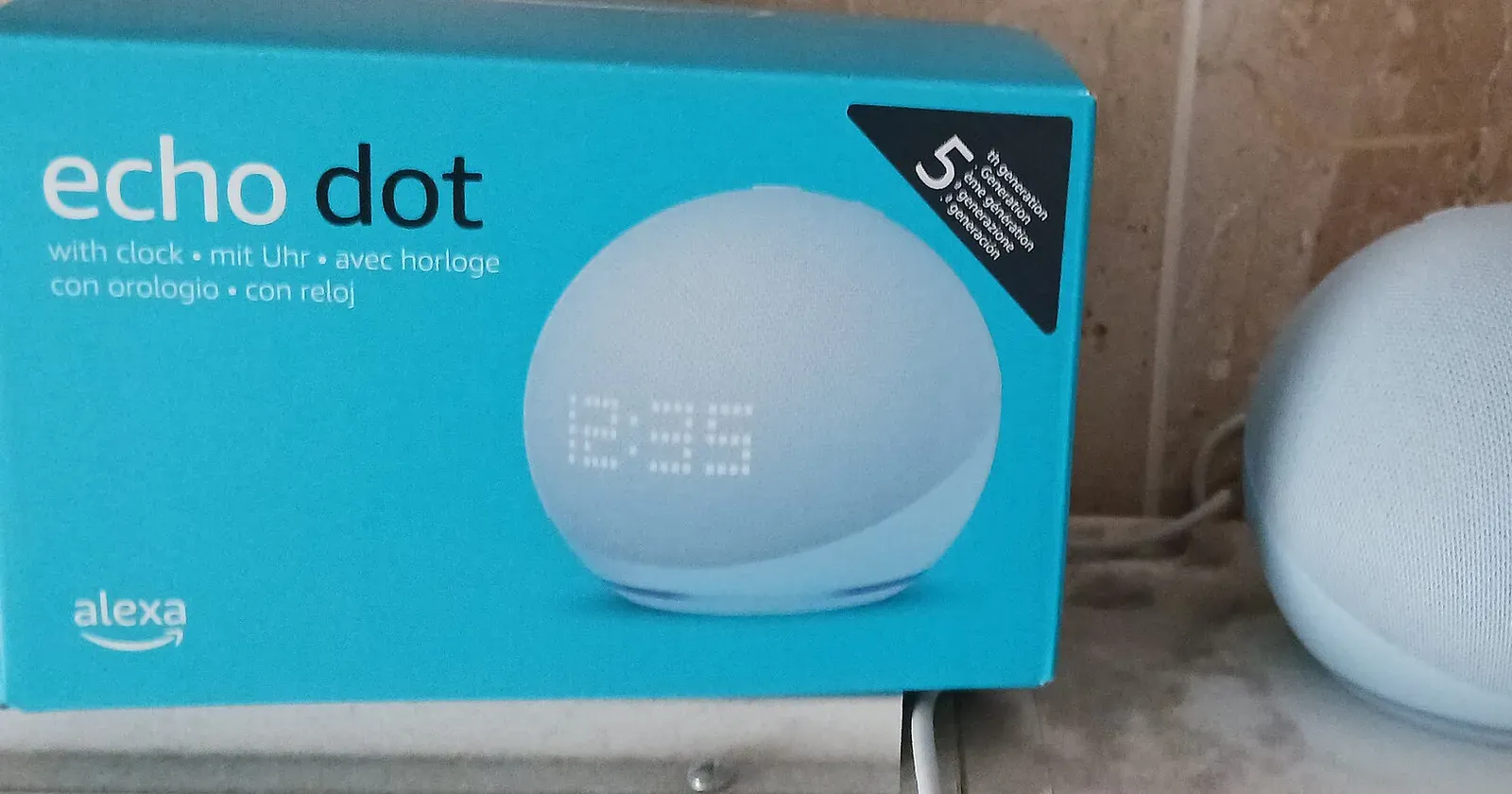
New-generation Echo Dot (or Echo Dot Max): the starting point
A compact speaker. The recent models announced by Amazon include a smart home hub (Zigbee, Matter and Thread), which lets you connect bulbs, locks and sensors without an extra bridge. Check the listing to confirm that the model sold on Amazon.ca has these radios: older generations of the Echo Dot don’t all include them.
Amazon Echo Dot (new generation) or Echo Dot Max
Pros
- Small, affordable, easy to place in any room
- Recent models include a Zigbee, Matter and Thread hub
- Alexa in Canadian English
- Simple setup with an Amazon account
Cons
- Depends on Amazon's cloud: without Internet, voice control stops
- Microphones listening continuously for the wake word
- Zigbee and Thread hubs vary by generation: check the listing
Approximate budget: around $70 – $180 depending on the model.
Echo Hub (or Echo Show 8): the central screen
An 8-inch control panel you can mount on the wall or set on a stand: lights, live cameras and one-tap routines. If you prefer a screen with a speaker and a camera, the Echo Show 8 plays a similar role.
Amazon Echo Hub (or Echo Show 8)
Pros
- 8-inch touchscreen to control the house
- Shows compatible cameras live
- Supports Matter and Thread
- Runs routines with a single tap
Cons
- More expensive than a speaker
- Still tied to Amazon's cloud
- Check the listing for Zigbee support
Approximate budget: around $180 – $260.
Fire TV Stick 4K Max: the TV as a control centre
It turns the TV into a voice-controlled control screen. It can show a compatible camera’s feed in picture-in-picture. See our Fire TV Stick comparison to pick the right model.
Amazon Fire TV Stick 4K Max (2nd generation)
Pros
- Wi-Fi 6E, Dolby Vision and Fire OS
- Alexa built into the remote
- Can show a compatible camera on the TV
Cons
- Needs a wall outlet
- Camera display depends on the brand: check compatibility
- Tied to Amazon, with no guaranteed promotion
Amazon Smart Plug: the simplest automation
A Wi-Fi plug that turns a table lamp, a coffee maker or Christmas lights into a controllable device. No third-party app: Alexa is enough. Check the listing for cUL or CSA certification for 120 V.
Amazon Smart Plug
Pros
- Sets up with Alexa, no third-party app
- Perfect for a lamp, a coffee maker or Christmas lights
- Very affordable
Cons
- Goes through Amazon's cloud: no local control
- Limited load: don't plug in a heater or a large appliance
- cUL or CSA certification to check on the listing
Approximate budget: around $20 – $40.
Ring (video doorbell) or Blink Outdoor: the security example
These Amazon-owned cameras integrate well with Alexa: voice announcements on your Echo devices when someone rings, and display on an Echo screen or a Fire TV. One weak point: without a Ring subscription, video history isn’t saved. Blink offers local storage with a sync module and a USB drive. To get out of the subscription, see our Ring and Nest migration plan.
Ring video doorbell or Blink Outdoor camera
Pros
- Voice announcements on Echo devices when someone rings
- Displays on an Echo Show, an Echo Hub or a compatible Fire TV
- Blink: local storage possible, no subscription
Cons
- Ring: video history requires a subscription
- Data lives in Amazon's cloud
- Display features vary by model and country: check compatibility
Approximate budget: around $70 – $200 depending on the model.
Step 1: set up the Alexa app and your first Echo
- Install the Alexa app on your phone and sign in with your Amazon.ca account.
- Plug in the Echo. It lights up and speaks a welcome message. Devices bought from Amazon are often already linked to your account: that’s Frustration-Free Setup, which picks up your Wi-Fi automatically.
- Connect it to Wi-Fi. The Echo handles both 2.4 GHz and 5 GHz. Keep your phone near the device and the router during setup.
- Choose the language: English (Canada). In the app, open the device settings and select the language. This setting gives the best recognition of Canadian accents and phrasing. Alexa also supports Canadian French if someone in your household prefers it.
- Set your address for weather and local services, and set units to °C in Alexa’s preferences.
No subscription is requested at this stage.
Step 2: connect your devices
Method A: Amazon devices (Smart Plug, Echo, Fire TV). They’re detected automatically, or you scan the QR code (or barcode) on the device or the box, depending on the model: tap “Add device” in the app.
Method B: Zigbee, Matter and Thread, no bridge. If your Echo or Echo Hub includes the hub, put the device in pairing mode and say “Alexa, discover my devices.” Check that your Echo model has the required radio. To understand the protocols, see our guide to Zigbee, Thread, Matter or Wi-Fi.
Method C: partner ecosystems (Ring, Blink, TP-Link Kasa, Sinopé, Lutron). In the app, open “Skills & Games,” search for the brand, enable the Skill and sign in to your brand account. It takes about 30 seconds. Then run device discovery.
Step 3: organize the house by room
Put each Echo and each light in the same room in a group (“Living Room,” “Kitchen,” “Bedroom”). You can then simply say “Alexa, turn on the lights”: the living-room Echo turns on the living-room lights, without you having to remember the exact name of every bulb.
Give devices short, distinct names (“living room lamp,” not “Lamp_Salon_01”). Avoid repeating the same name in two rooms.
Step 4: 3 routines with no coding
In the app, open “Routines,” choose a trigger (a phrase, a time, a sensor), then the actions.
- Leaving the house. Trigger: “Alexa, I’m leaving.” Actions: turn off plugs and lights, lower the heating if your thermostat works with Alexa.
- A visitor arrives. Trigger: the Ring or Blink doorbell. Actions: announce “Someone is at the door” on all Echo devices, and show the camera on the Echo Hub or the Fire TV, if your model allows it.
- Goodnight. Trigger: “Alexa, goodnight.” Actions: lock the door (compatible lock), turn off the Fire TV and dim the hallway.
Step 5: the 3 essential privacy settings
Go to the app, “More,” “Settings,” “Alexa Privacy.”
- Use the physical button that cuts the microphone when you need privacy: the light turns red and the device stops listening.
- Turn off the use of voice recordings to improve Amazon’s services, if that option is offered for your account. It can vary by country.
- Turn on automatic deletion of your voice history (after 3 or 18 months, depending on the options shown). A “don’t save recordings” option may exist, but it disables voice profiles and isn’t offered everywhere.
Review the history and the Skills linked to your account regularly.
Going further
Once Alexa is in place, you may want a local brain for automations that need to survive an Internet outage: follow our guide to installing Home Assistant on a Mini PC and then expose your devices to Alexa.
No Echo yet, or torn between the Pop, the Dot Max and the Echo Hub? Our Amazon Echo comparison 2026 shows which model suits each room.
Photo: “Amazon Echo Dot 5 mit Uhr”, Aktulisert, Wikimedia Commons, CC BY-SA 4.0 (cropped and converted).
Frequently asked questions (FAQ)
Do I need an Amazon Prime subscription to use Alexa and routines?
No. Alexa, routines and device control are free with a regular Amazon account. Prime isn't needed for the basics. Alexa+, the AI-powered upgrade, is included with Prime in Canada; without Prime it's a paid plan, around $28 a month according to Amazon, with a limited free tier. Check the current terms in the app. The routines in this guide work without Alexa+.
Why won't my Wi-Fi device connect to my Bell, Rogers or Vidéotron router?
Most often it's the 2.4 GHz band. Many Wi-Fi plugs and bulbs don't support 5 GHz, and routers sometimes merge both bands under one network name. Move the device close to the router during setup, temporarily turn off 5 GHz or split the two network names, then try again. Also check that your password doesn't contain special characters that cause trouble.
Can I control my Amazon devices from Home Assistant?
In one direction, yes. You can expose your Home Assistant devices to Alexa, with Home Assistant Cloud (Nabu Casa) or a more technical manual setup. In the other direction, a community integration (Alexa Media Player, through HACS) lets you send messages to your Echo devices. Amazon's own devices, like the Smart Plug, go through the cloud: for local control, choose Zigbee plugs instead.
How do I stop Alexa from responding on several Echo devices at once?
Alexa usually picks the device closest to you, but that isn't always reliable when two Echo devices are near each other. Put them in different rooms and assign them to separate groups in the app. You can also change the wake word on one of them (Echo, Computer, Amazon) and keep the devices at least a few metres apart.